Interface Overview
Trial Submission Studio features a clean, intuitive interface designed for clinical data programmers.
Welcome Screen
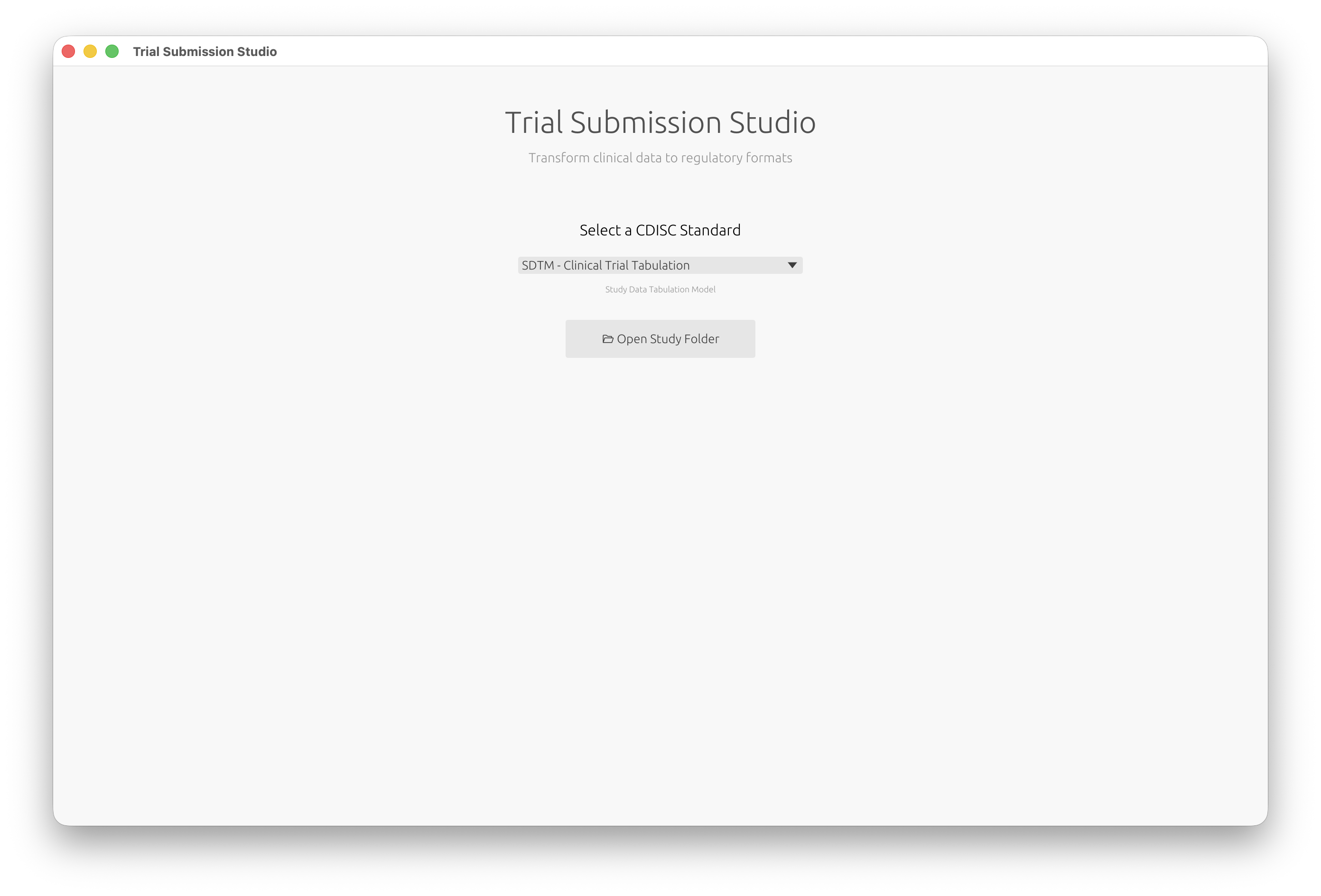
When you first launch the application, you’ll see the welcome screen where you can select your target CDISC standard and open a study folder:
Study Overview
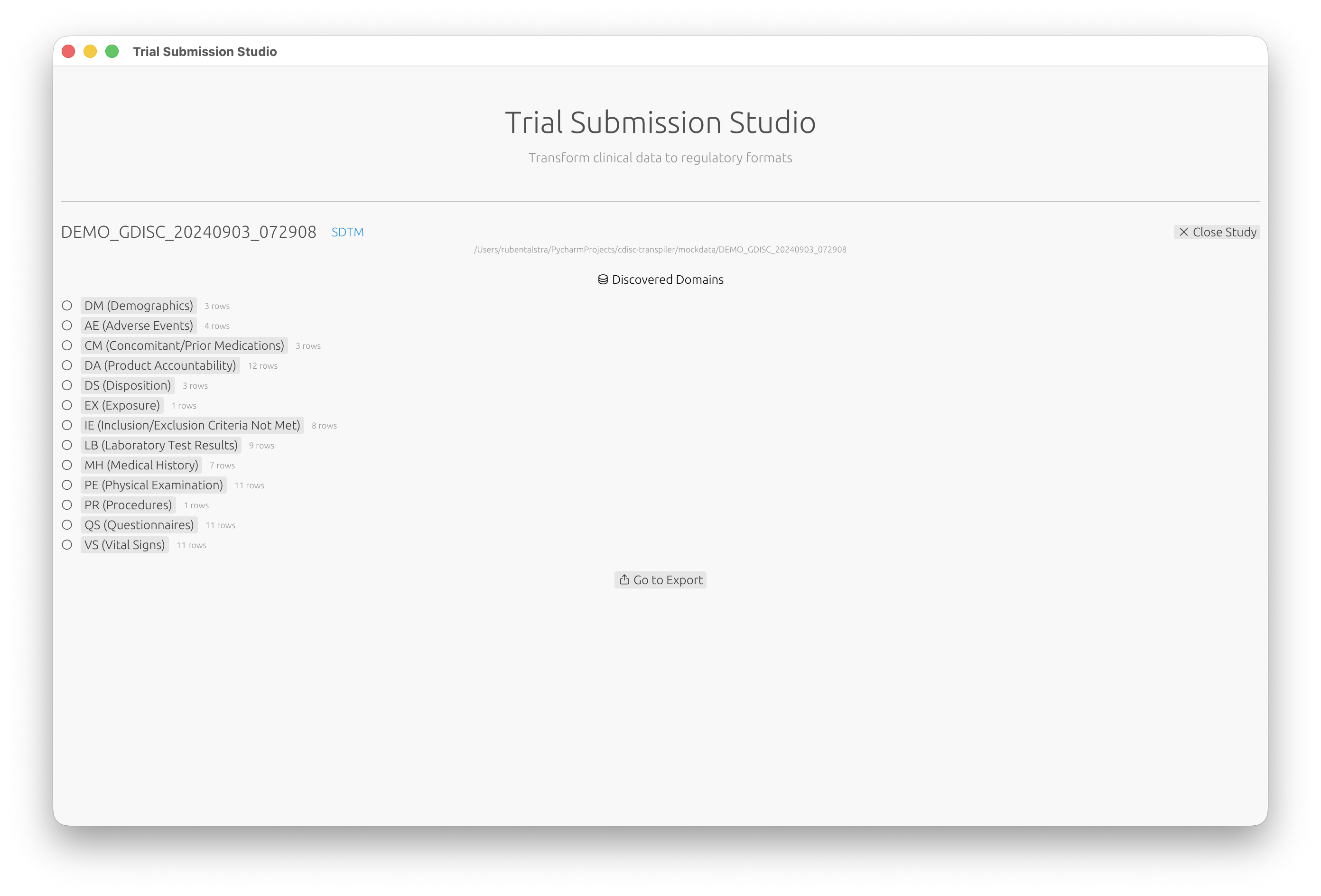
After opening a study folder, Trial Submission Studio automatically discovers domains from your source data:
Main Window Layout
The application is organized into several key areas:
┌─────────────────────────────────────────────────────────────┐
│  Menu Bar                                                    │
├─────────────────────────────────────────────────────────────┤
│  Toolbar                                                     │
├──────────────────┬──────────────────────────────────────────┤
│                  │                                           │
│  Navigation      │  Main Content Area                        │
│  Panel           │                                           │
│                  │  - Data Preview                           │
│  - Import        │  - Mapping Interface                      │
│  - Mapping       │  - Validation Results                     │
│  - Validation    │  - Export Options                         │
│  - Export        │                                           │
│                  │                                           │
├──────────────────┴──────────────────────────────────────────┤
│  Status Bar                                                  │
└─────────────────────────────────────────────────────────────┘
Menu Bar
File Menu
- Import CSV - Load source data
- Export - Save to XPT/XML formats
- Recent Files - Quick access to recent projects
- Exit - Close the application
Edit Menu
- Undo/Redo - Reverse or repeat actions
- Preferences - Application settings
Help Menu
- Documentation - Open this documentation
- About - Version and license information
- Third-Party Licenses - Dependency attributions
Toolbar
Quick access to common actions:
- Import - Load CSV file
- Validate - Run validation checks
- Export - Save output files
Navigation Panel
The left sidebar provides step-by-step workflow navigation:
- Import - Load and preview source data
- Domain - Select target SDTM domain
- Mapping - Map columns to variables
- Validation - Review validation results
- Export - Generate output files
Main Content Area
The central area displays context-sensitive content based on the current workflow step:
Import View
- File selection
- Data preview table
- Column type detection
- Schema information
Mapping View
- Source columns list
- Target variables list
- Mapping connections
- Match confidence scores
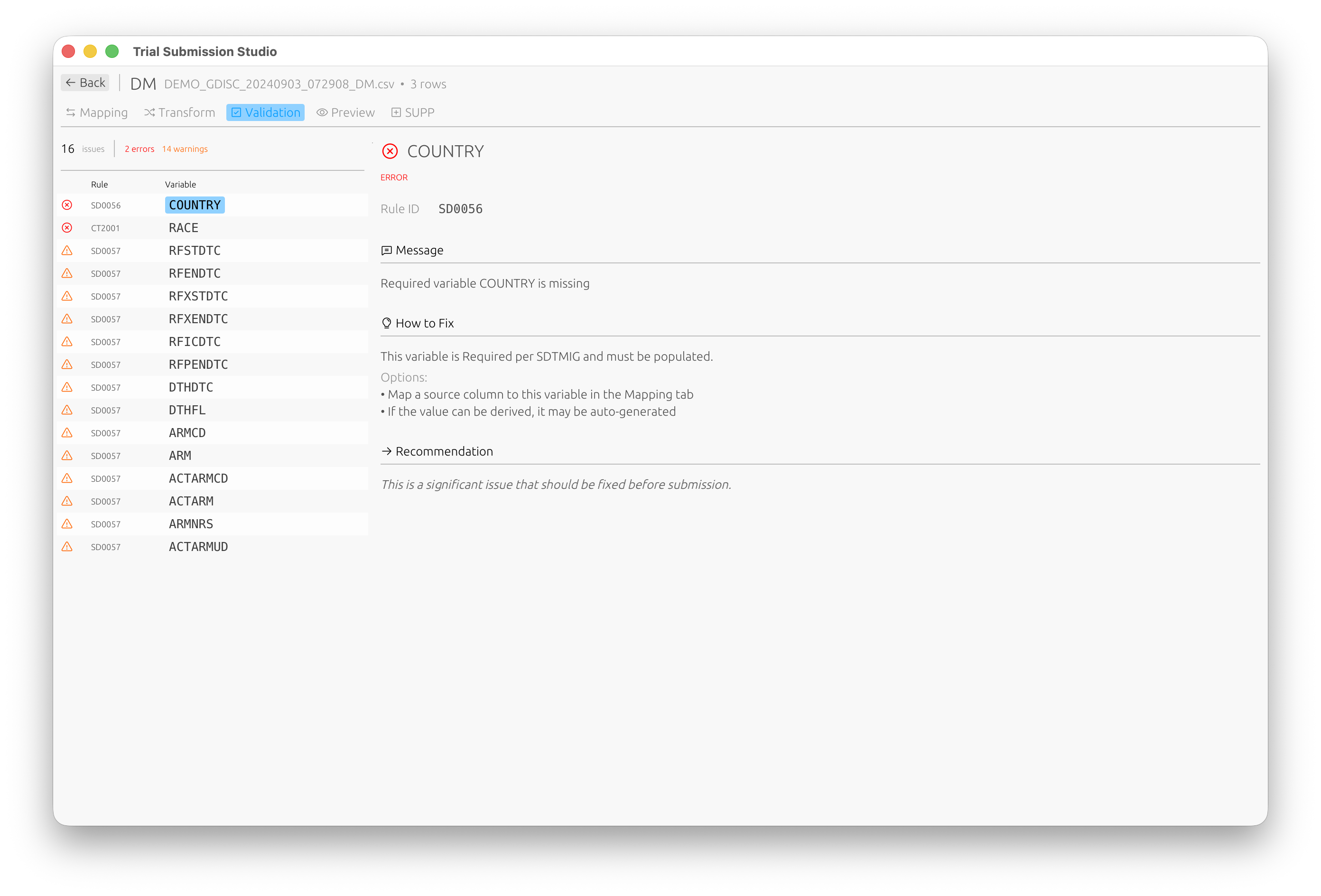
Validation View
- Validation rule results
- Error/warning/info messages
- Affected rows and columns
- Suggested fixes
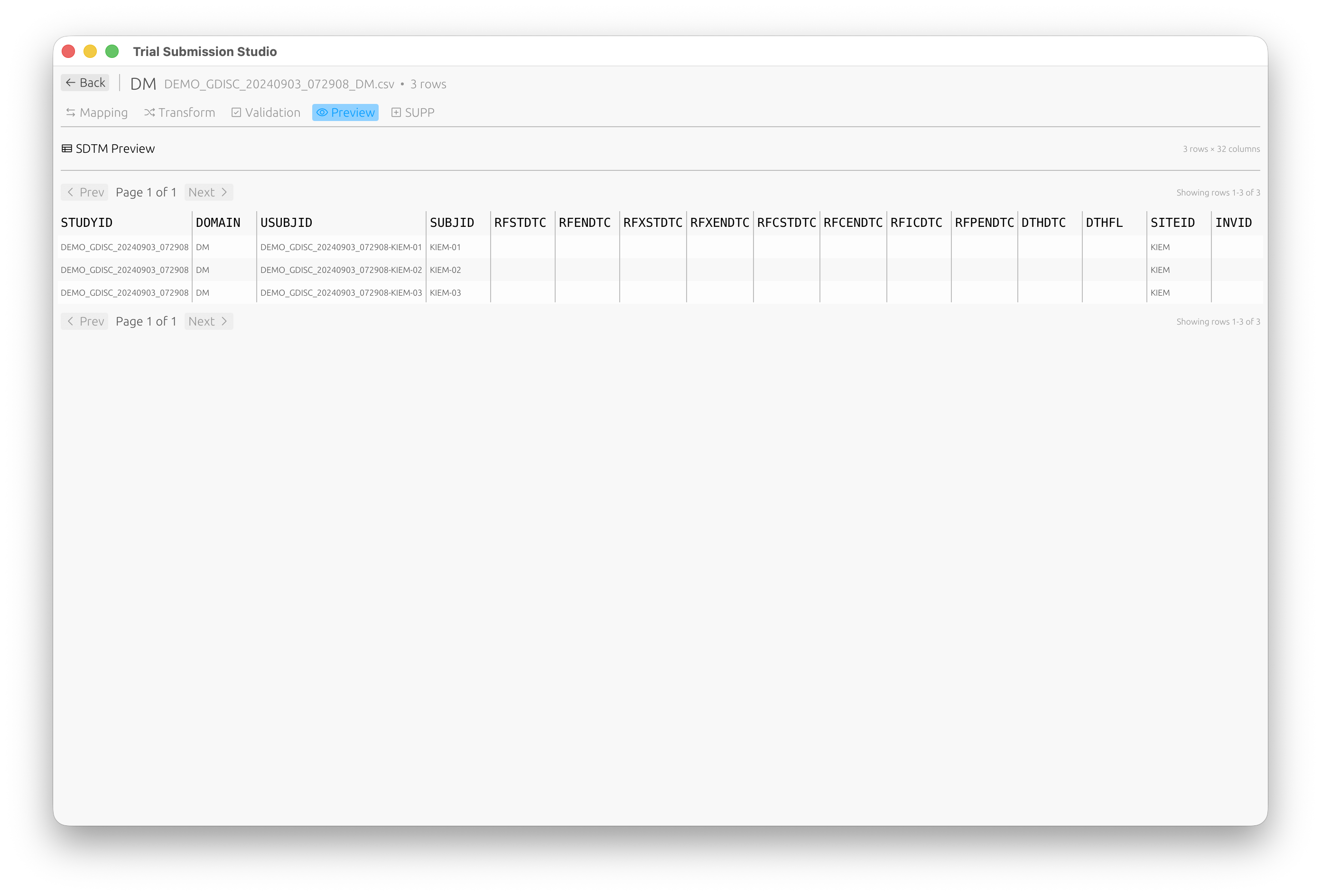
Preview View
Preview your SDTM-compliant data before export:
Export View
- Format selection
- Output options
- File destination
- Progress indicator
Status Bar
The bottom bar displays:
- Current file name
- Row/column counts
- Validation status
- Progress for long operations
Keyboard Shortcuts
| Action | macOS | Windows/Linux |
|---|---|---|
| Import | ⌘O | Ctrl+O |
| Export | ⌘E | Ctrl+E |
| Validate | ⌘R | Ctrl+R |
| Undo | ⌘Z | Ctrl+Z |
| Redo | ⌘⇧Z | Ctrl+Shift+Z |
| Preferences | ⌘, | Ctrl+, |
| Quit | ⌘Q | Alt+F4 |
Themes
Trial Submission Studio supports light and dark themes. Change via: Edit → Preferences → Appearance
Next Steps
- Importing Data - Learn about data import
- Column Mapping - Mapping interface guide